Honest accuracy, always
FindMyPark shows the reported GPS accuracy and an accuracy circle when available. It tells you when the saved fix is weak or its accuracy is unknown.
 FindMyPark
In development — not yet available on the App Store. Screenshots show development previews.
A little less to remember.
Keep the floor, section, bay and a photo together with your saved parking location—so the walk back starts with more than a pin.
A GPS coordinate does not reliably identify a garage floor or numbered bay. Save level B2, the blue section and a photo alongside any available map pin. FindMyPark does not automatically detect those details.
FindMyPark shows the reported GPS accuracy and an accuracy circle when available. It tells you when the saved fix is weak or its accuracy is unknown.
Snap the level sign, the pillar number, the nearest elevator. Swipe through them later in a full-screen gallery.
Set an expiry time and request local reminder alerts. The app shows when scheduling fails; delivery depends on your notification settings.
See distance changes when both current and saved locations are available. These are GPS estimates, not an indoor route or a guarantee of the right direction.
Saved details and photos remain accessible without internet. A map pin and live distance still need usable location fixes; map loading and routing may need connectivity.
No account, FindMyPark backend, ads or analytics SDK. Parking details may be backed up by your device; map services and Apple Maps have their own data handling.
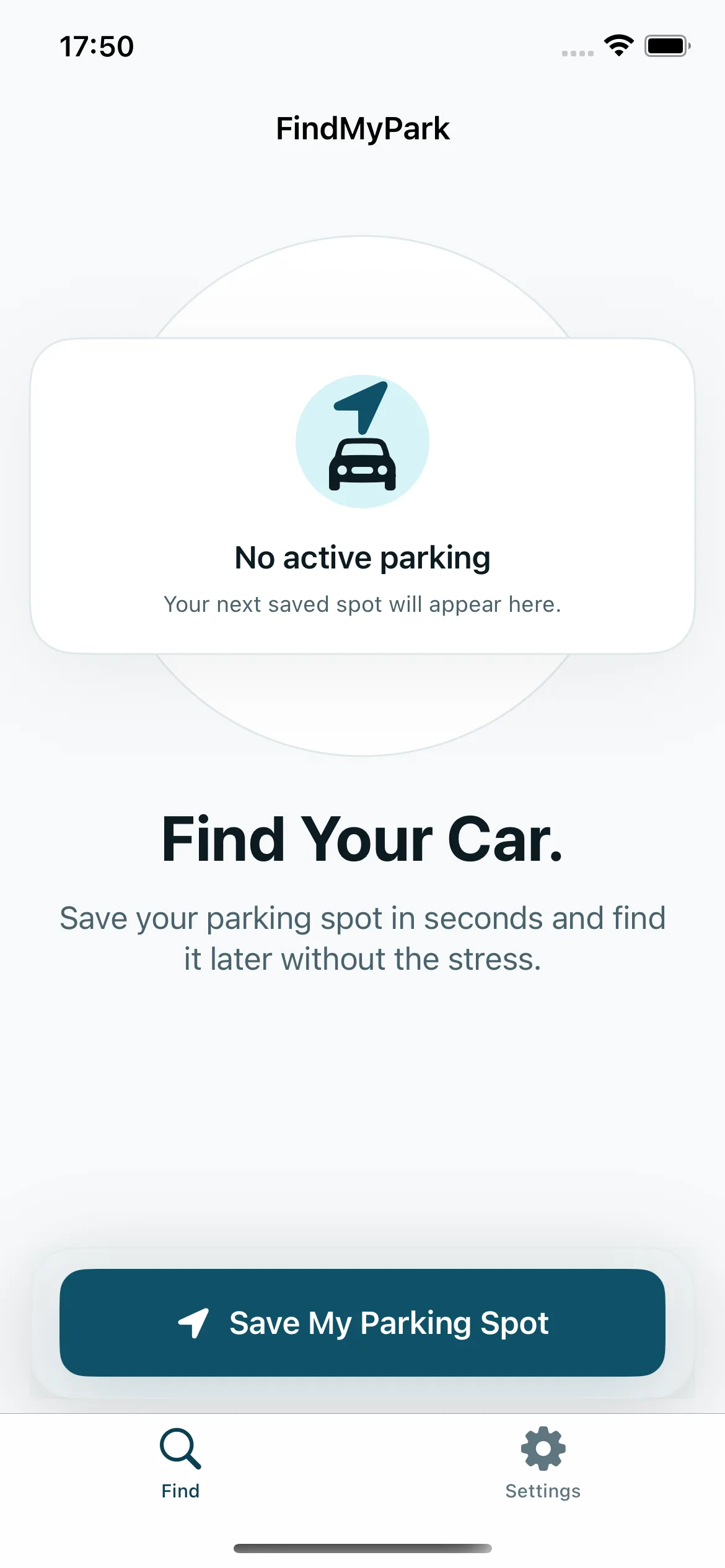
Start from the home screen above, save a few details, then use them when it is time to leave.
Tap Save My Parking Spot. Add a level, section, spot number and note, then confirm. Location is requested when you confirm if you allow access; manual details can still be saved without a map pin.
Add an optional parking timer or choose reference photos of a sign, pillar or nearby landmark. These recent screens show the form, reminder picker and Apple's photo picker in context.
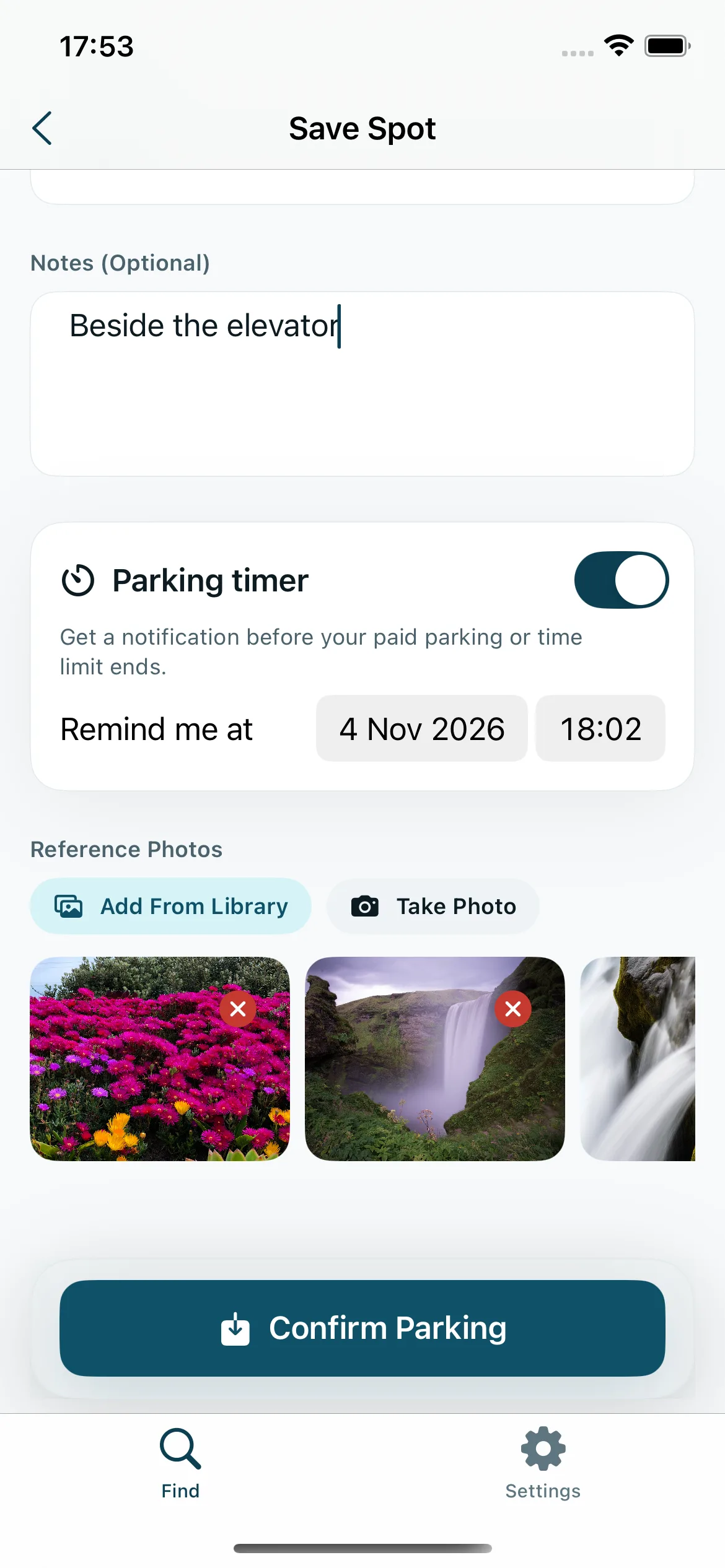
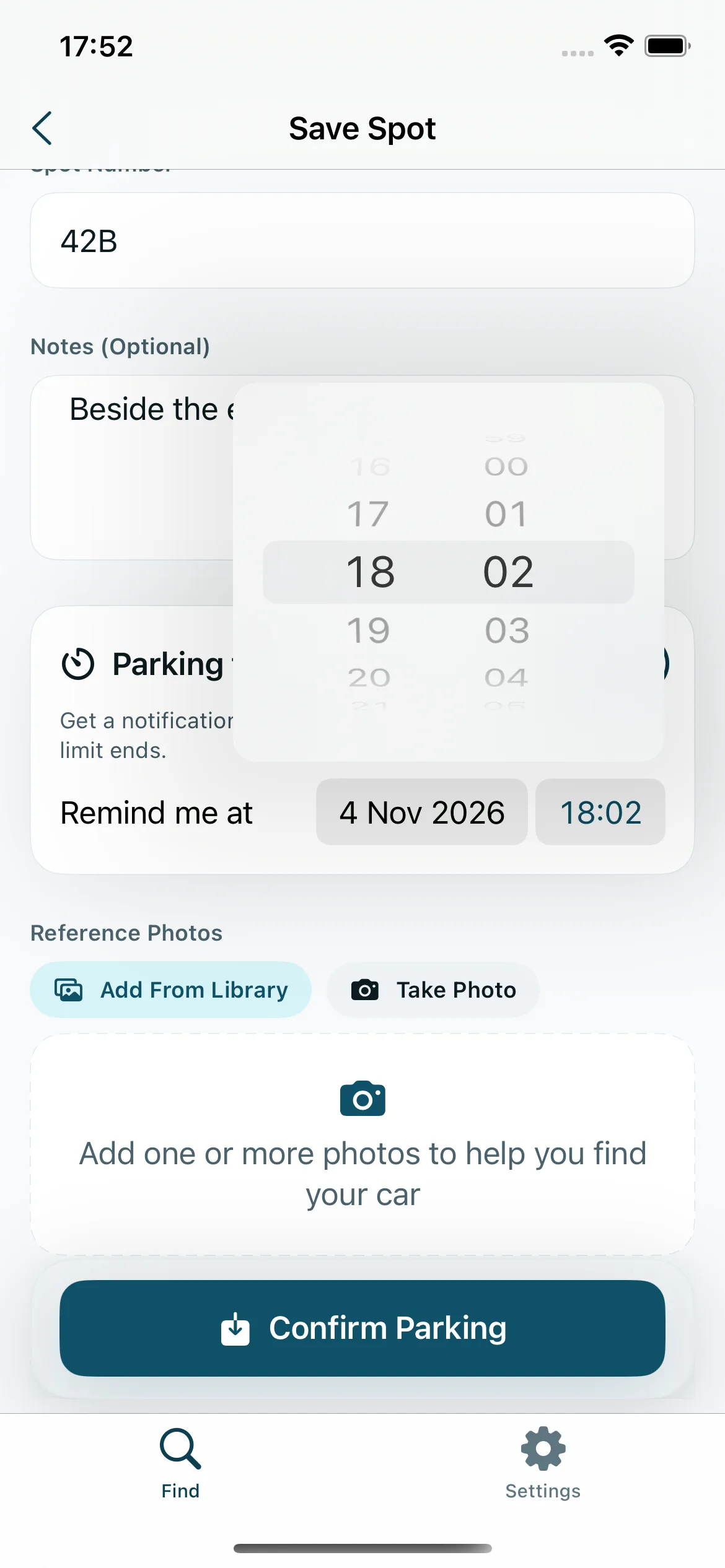
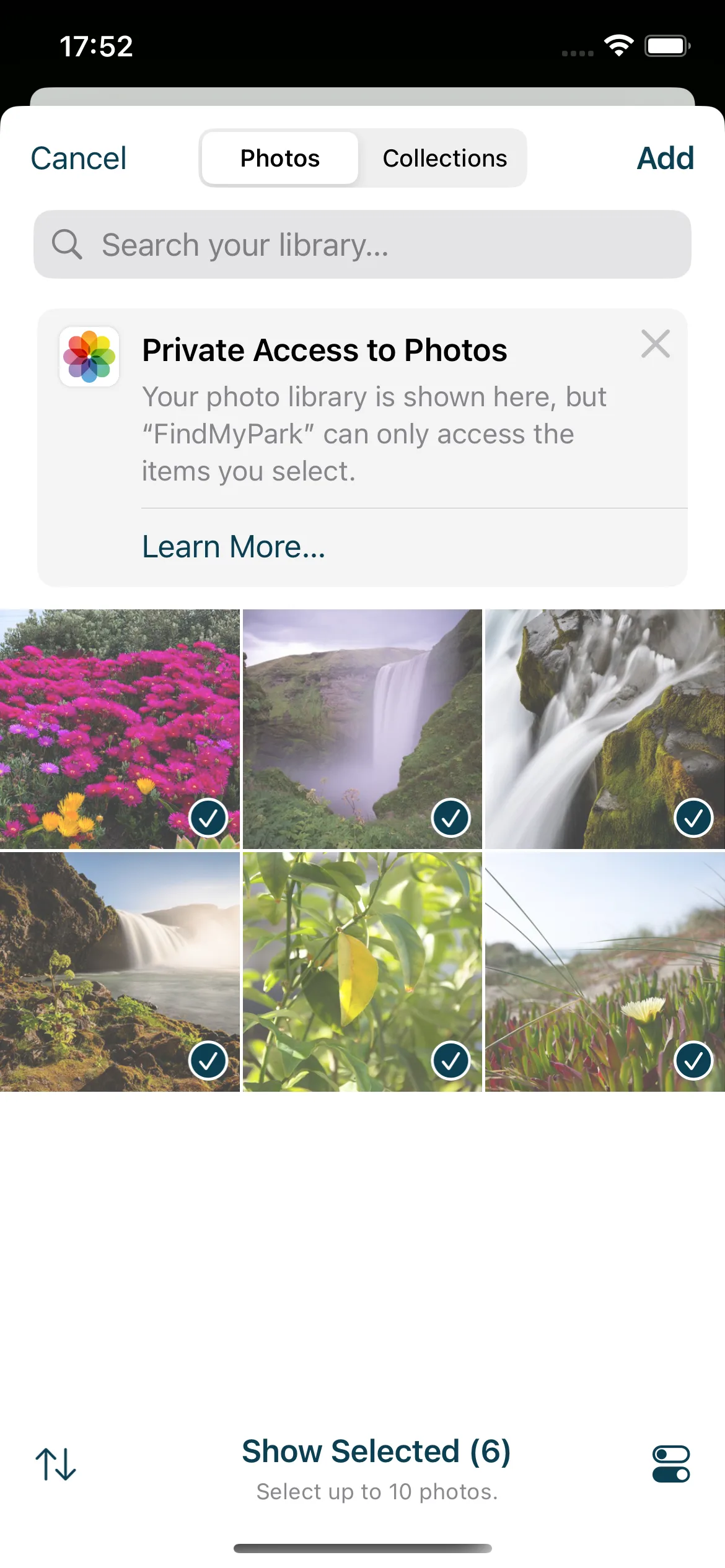
Your active screen keeps the parking details, reference photos, note and reminder status together. Distance depends on usable location fixes, so rely on the details you saved if GPS is weak underground.
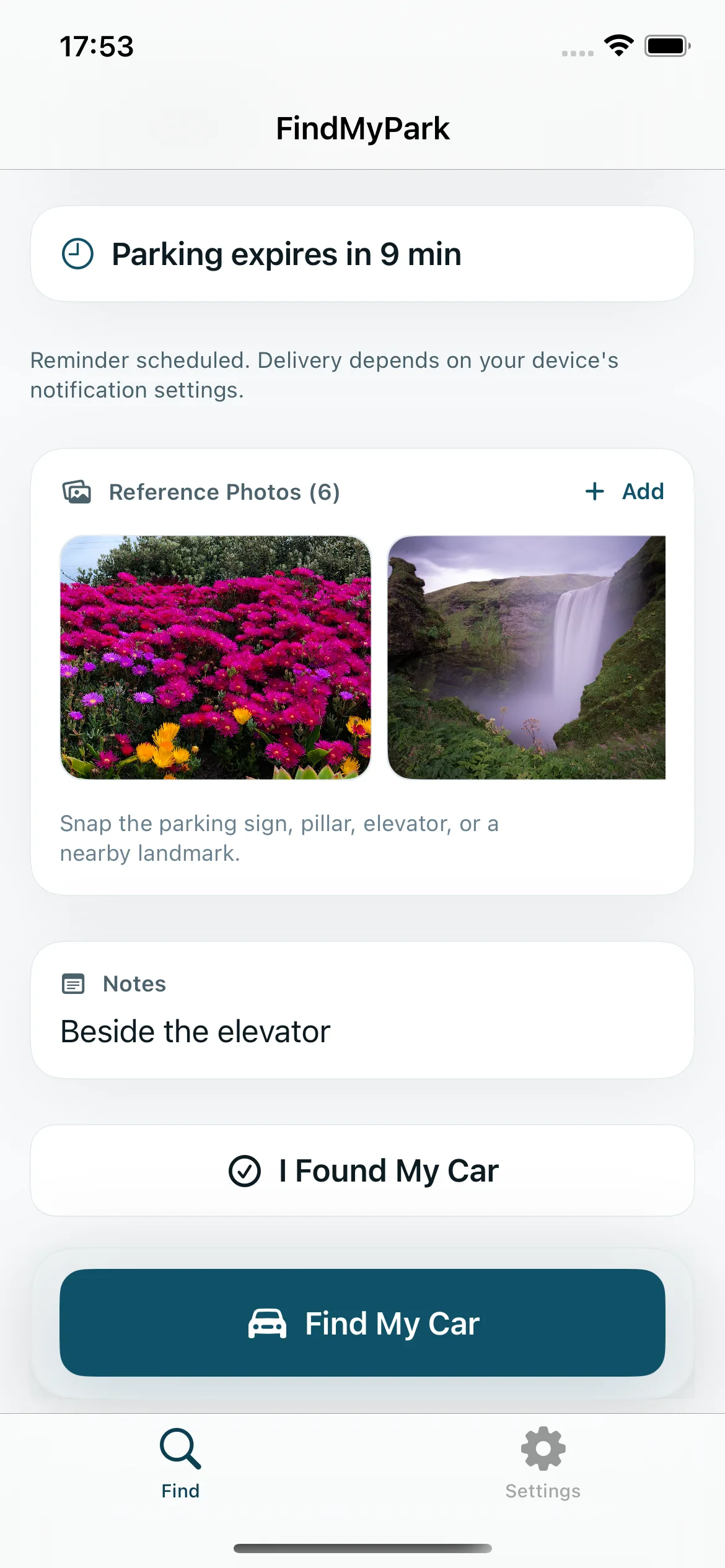
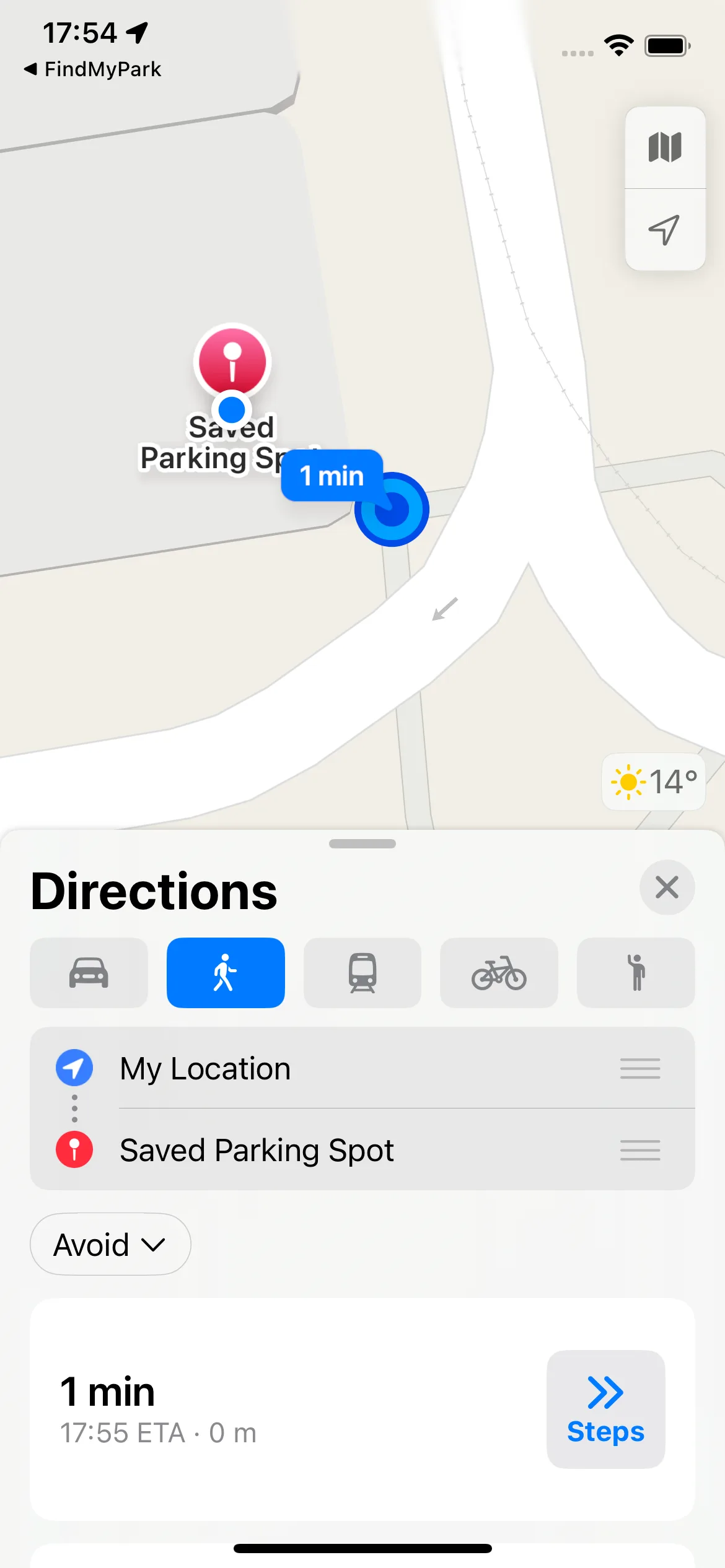
Tap Find My Car to hand the saved coordinate to Apple Maps. FindMyPark shows a straight-line distance when location is available; it does not provide turn-by-turn or indoor navigation.
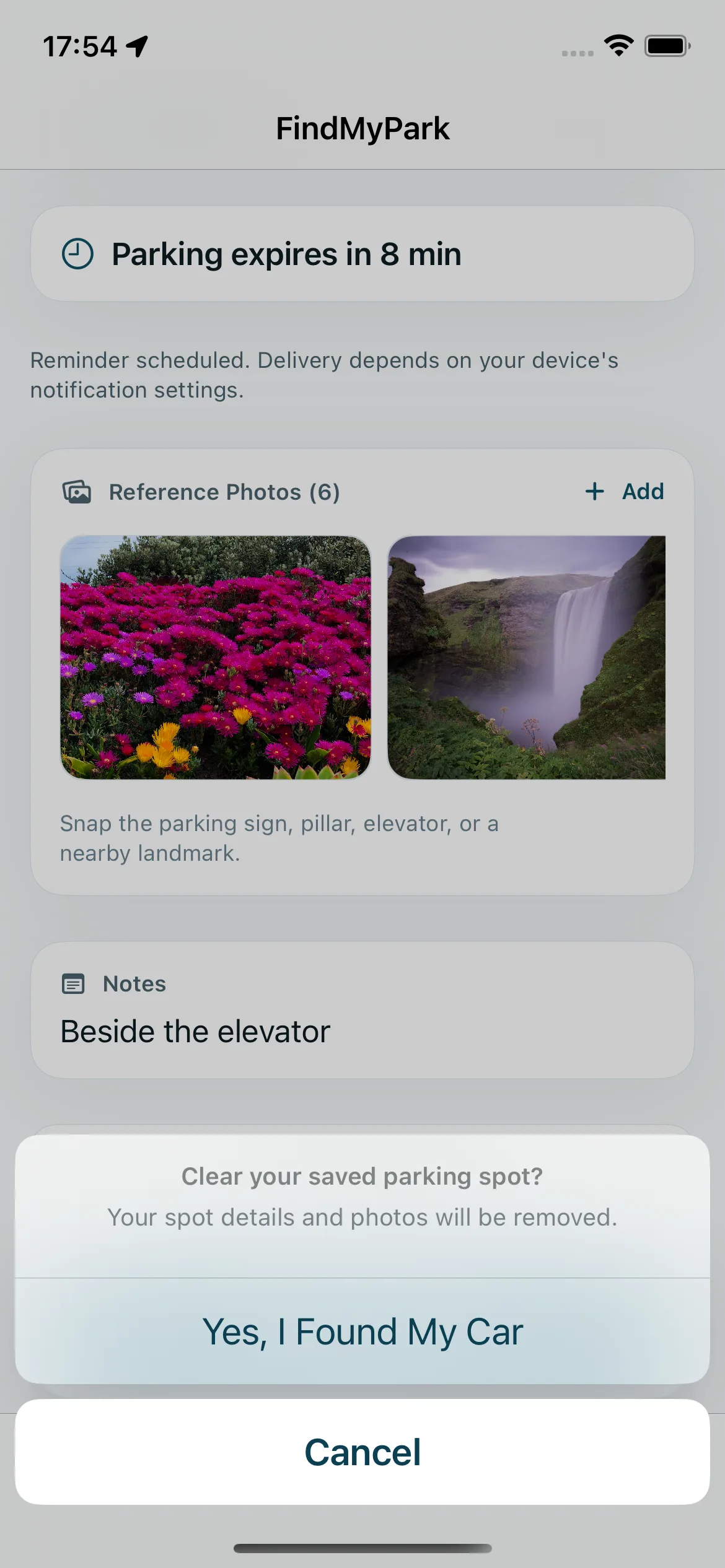
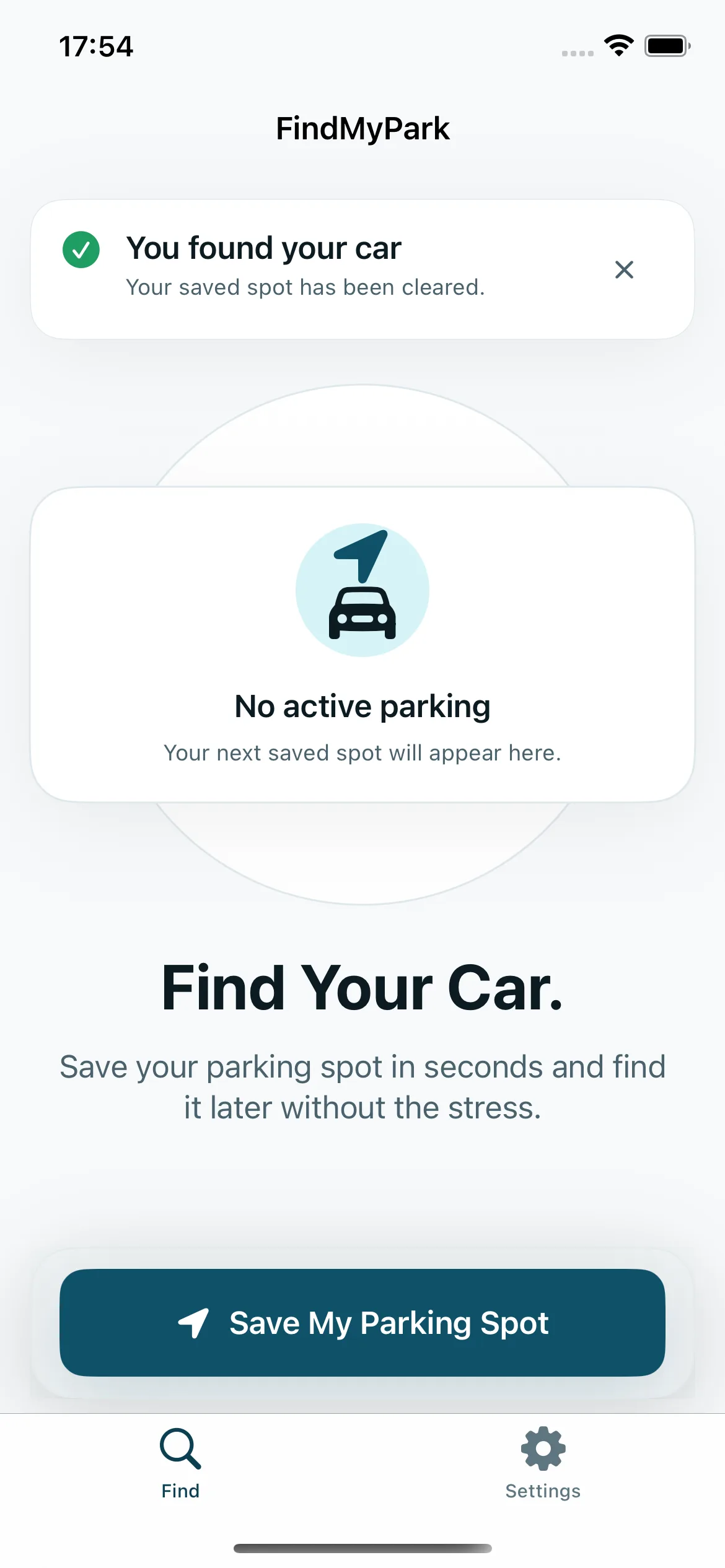
Choose I Found My Car and confirm to clear the active spot and its reference photos. The home screen is then ready for your next parking session.
FindMyPark has no backend. There is no sign-up, no cloud sync, no analytics SDK and no advertising ID. Parking details and photos are stored locally. Device backups may include parking details; reference photos are excluded. Maps uses Apple's services.
Read the privacy policyFindMyPark saves parking details and reference photos locally without an account. A map pin and live distance depend on location availability.